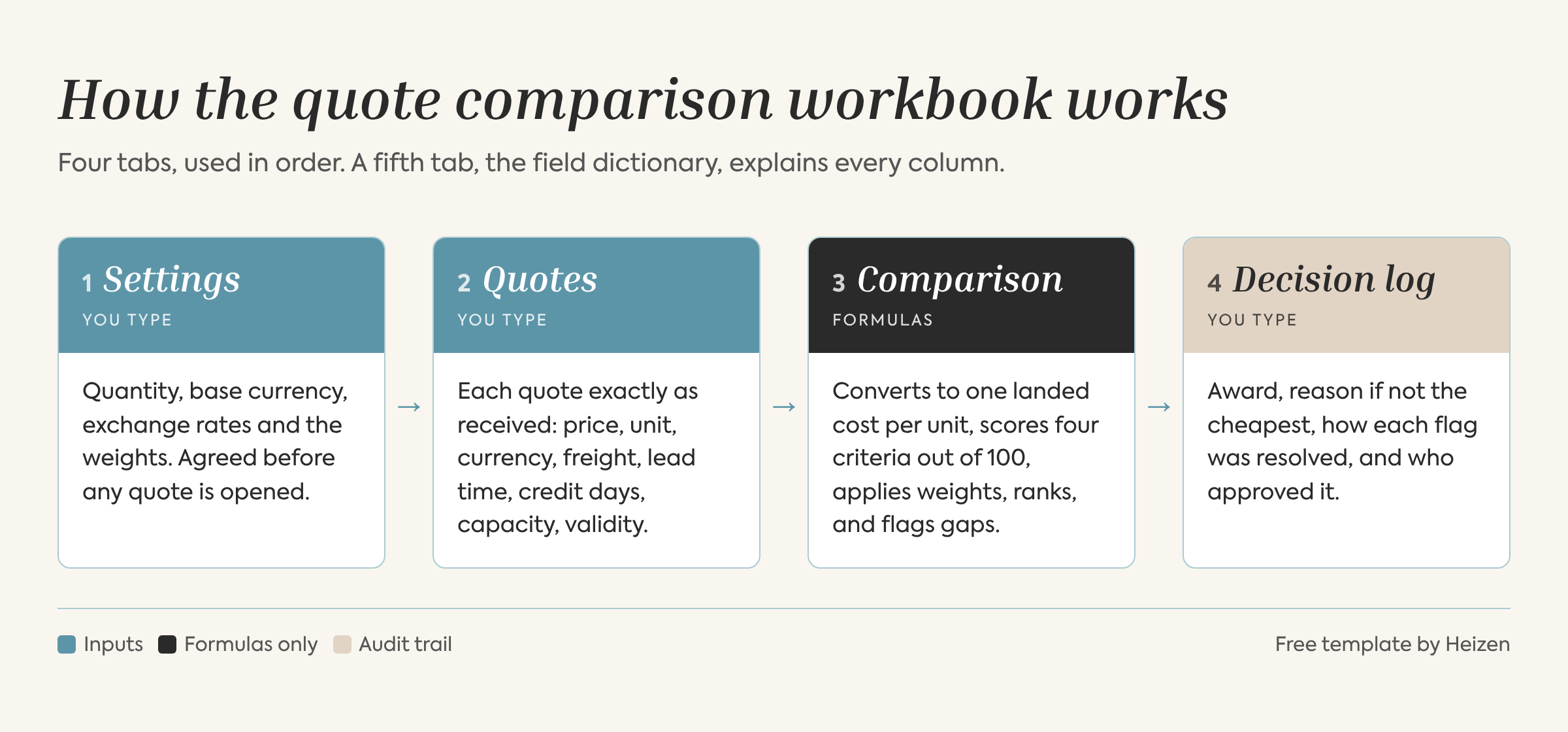
A supplier quote comparison template is a spreadsheet that puts every supplier quote on the same basis and then scores it. Our free workbook does this in four steps. You type each quote exactly as it arrived. Formulas convert it to one currency, one unit and one landed cost per unit, score each supplier on price, lead time, payment terms and past performance, and flag the gaps a person must check. A decision log records who approved the award and why. It is an editable Excel file, with no sign-up required.
Heizen built this template from the same method we use in custom AI procurement automation built around your process. When your team outgrows the sheet, the same logic can run as a workflow alongside your ERP, with your buyers still making the call.
Download the free supplier quote comparison workbook
Who should use this supplier quote comparison template?
The workbook is built for one item per RFQ and up to ten suppliers. It works best for:
· Buyers and category managers comparing three to ten quotes for the same part or material.
· Small procurement teams that do not have a sourcing tool, or whose ERP only compares price.
· Approvers and finance heads who want to see, on one page, why a supplier was chosen.
· Teams that prepare a comparative statement of quotations for approval, a common step in Indian purchasing.
What's inside the supplier quote comparison workbook?
The file has six tabs: Start here, Settings, Quotes, Comparison, Decision log and a Field dictionary that explains every column. You type only in the yellow cells. Everything else is a formula.
What fields and formulas does the template use?
Fields you type on the Quotes tab
Table 1. The main input fields. The field dictionary tab lists all of them.
Delivery terms follow the International Chamber of Commerce’s Incoterms® 2020 rules, which set out who pays for transport and who carries the risk at each point.
Formulas it runs on the Comparison tab
· Unit price = price as quoted ÷ units per quote unit × exchange rate.
· Freight per unit = 0 if delivered; otherwise freight quoted ÷ quantity; otherwise your estimate.
· Landed cost per unit = unit price + freight per unit.
· Price score = lowest landed cost ÷ this supplier’s landed cost × 100.
· Lead time score = shortest lead time ÷ this supplier’s lead time × 100.
· Payment score = this supplier’s credit days ÷ the longest credit days × 100. Advance payment scores 0.
· Weighted total = each score × its weight, added up, out of 100.
Flags it raises for a person
· Freight not quoted, so an estimate was used.
· Partial quantity: the supplier cannot deliver the full amount.
· Advance payment, no validity date, or a new supplier with no history.
· Foreign currency, so the cost can move before you pay.
· Top score is not the lowest landed cost, so a written reason is needed.
What does the template look like with example inputs?
The workbook comes filled in with the five bids from our worked example comparing 5 supplier bids : 5,000 ball bearings for a plant in Pune, weighted 50% price, 20% lead time, 15% payment terms and 15% performance. All names and numbers are test data, made up for illustration.
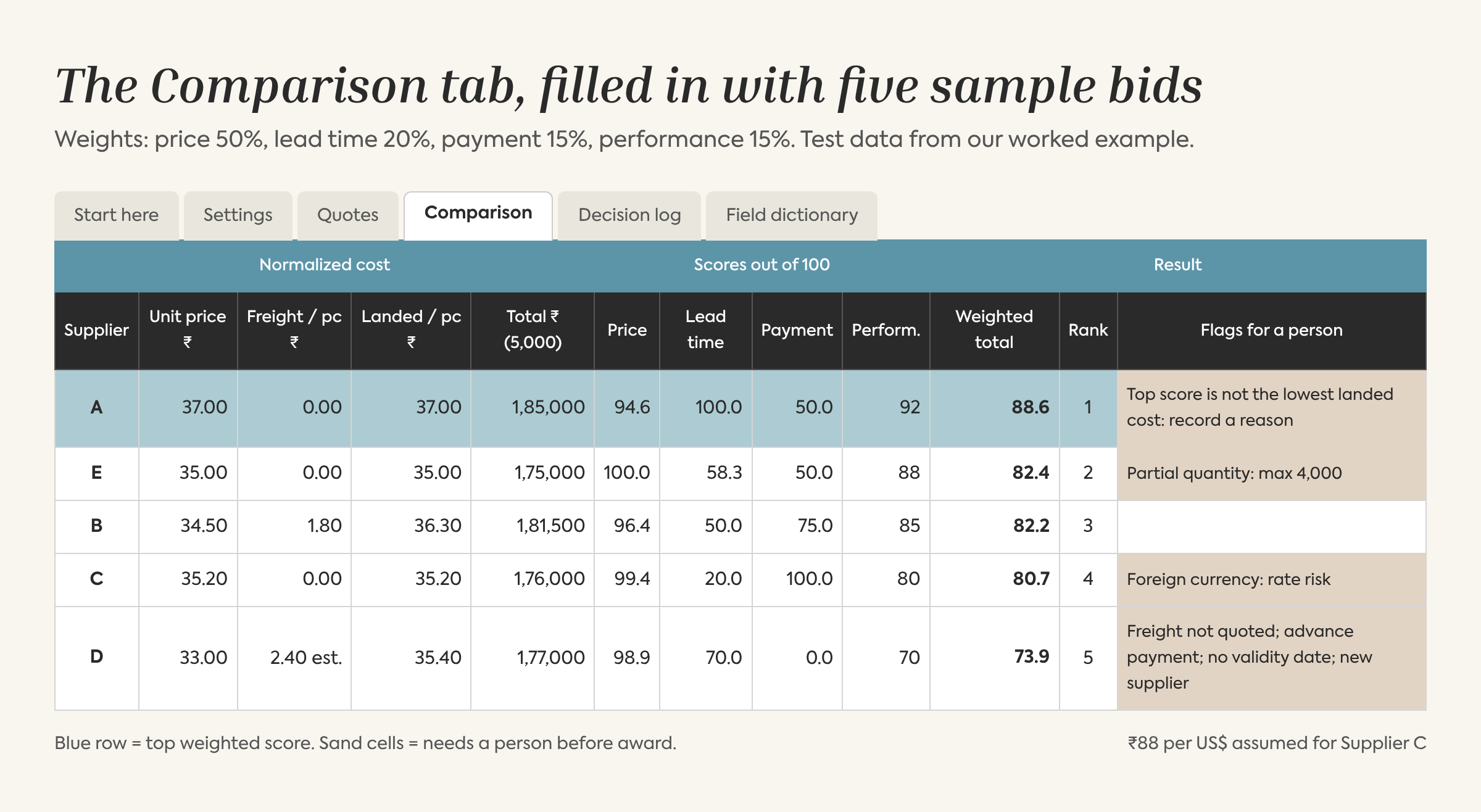
The Comparison tab with the five sample bids. Blue is the top score; sand cells need a person.
Table 2. Sample results from the workbook (test data, ₹88 per US$).
What the example shows
· The cheapest headline price finished last. Supplier D’s ₹33 quote has no freight, asks for full payment in advance and comes from a new supplier.
· The winner is the most expensive quote. Supplier A costs ₹37 a piece but delivers in 7 days and has the best record, so the sheet asks for a written reason.
· The cheapest landed cost cannot fill the order. Supplier E can only supply 4,000 pieces. A split award, 4,000 from E and 1,000 from A, costs ₹1,77,000 instead of ₹1,85,000, and the decision log shows how it was recorded.
· Try changing the weights. Set price to 60% and lead time to 10%, and Supplier C moves to the top with 88.7 against A’s 88.1.
What are the limits of scoring supplier quotes in a spreadsheet?
Scoring caveats to keep in mind
· Weights are a business decision, not a maths problem. Write down why you chose them before you see the quotes.
· Scores are relative. Adding or removing one bid changes everyone else’s price score.
· Performance scores are only as good as their source. Build them from a proper supplier evaluation scorecard for manufacturing, not from memory.
· The cheapest landed cost may be partial. Always read the Flags column before you award.
Spreadsheet errors are more common than most teams think
· Raymond Panko of the University of Hawaii reviewed field audits of real spreadsheets. The audits done from 1997 onward “found errors in at least 86% of the spreadsheets audited” (Panko, 2000).
· In 2003, Canadian power company TransAlta took a US$24 million hit on transmission contracts it bid for. Its CEO, Steve Snyder, called it “a cut-and-paste error in an Excel spreadsheet that we did not detect” when the bids were sorted and ranked.
· What helps : type only in the yellow cells, keep one file per RFQ, never paste over formulas, and have a second person check the Comparison tab before sign-off.
How do you move from the spreadsheet to an automated workflow?
The logic does not change: normalize, score, flag, approve. What changes is who does the reading and typing.
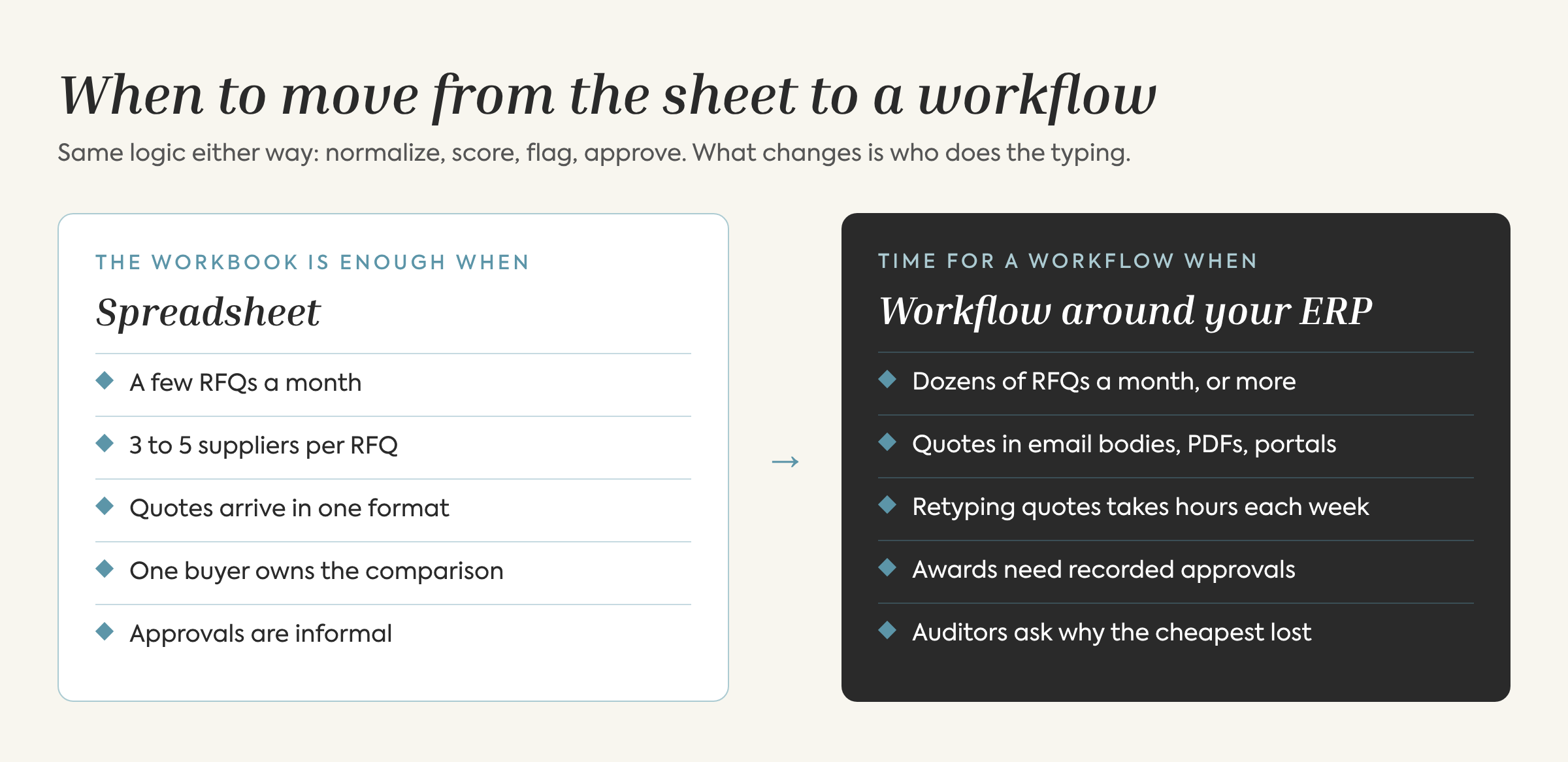
Signs that your team has outgrown the comparison spreadsheet.
What a workflow adds
· Quotes are read where they arrive. An AI agent pulls the details from emails, PDFs and portals, so nobody retypes them. Missing details are chased automatically.
· Problems are caught before the PO. The same checks can spot duplicate purchase requests and the other issues in RFQ-to-PO exception intelligence
· Approvals are built in. The approver gets one decision card with the ranking, the flags and the reason box.
· Your ERP stays. The award is written back to the system you already use. See how to automate RFQs without replacing SAP.
· Negotiation can follow. Some flags become negotiations, where AI negotiation with human approval keeps a person in charge, or a consultant may be the better choice.
An example from a Heizen project
At Godrej Consumer Products (GCPL), supplier quotes used to arrive by email and were re-entered by hand. Heizen built an RFQ workflow where AI extracts each quote, ranks suppliers on landed cost, and records a justification whenever the award does not go to the lowest bidder.
Frequently asked questions about supplier quote comparison templates
Is there a free supplier quote comparison template in Excel?
Yes. Heizen’s supplier quote comparison workbook is a free, editable Excel file with no sign-up. It converts quotes to landed cost, scores them with weighted criteria, flags gaps and logs the award.
How do you calculate landed cost when comparing supplier quotes?
Convert the price to your currency and order unit, then add freight per unit. If a supplier quotes freight for the whole order, divide it by the quantity. If freight is missing, use an estimate and flag it.
What weights should a supplier bid comparison spreadsheet use?
There is no single right answer. Many teams start with price at 40–60% and split the rest between lead time, payment terms and supplier performance. Agree the weights before opening the quotes and record why.
What is a comparative statement of quotations?
It is a side-by-side table of supplier quotes for the same item, often required before a purchase is approved. The Comparison and Decision log tabs in this workbook together give you a comparative statement with scores and an audit trail.
Conclusion
A good supplier quote comparison template does three things: it makes every quote comparable, it scores what matters to the business, and it records why the award was made. This free workbook does all three for one RFQ at a time. When the volume grows, the same steps can run as a workflow around your ERP, with your buyers still signing off.
Download the free supplier quote comparison workbook, or book a free 30-minute procurement diagnostic and we will show you what automatic quote comparison would look like on your own data.
Sources
· Raymond R. Panko, “Spreadsheet Errors: What We Know. What We Think We Can Do.” Proceedings of the European Spreadsheet Risks Interest Group (EuSpRIG), 2000: https://arxiv.org/abs/0802.3457
· The Register, “Excel snafu costs firm $24m” (19 Jun 2003): https://www.theregister.com/2003/06/19/excel_snafu_costs_firm_24m/
· International Chamber of Commerce, “Incoterms® 2020”: https://iccwbo.org/business-solutions/incoterms-rules/incoterms-2020/
· Heizen case studies: https://www.heizen.work/case-studies